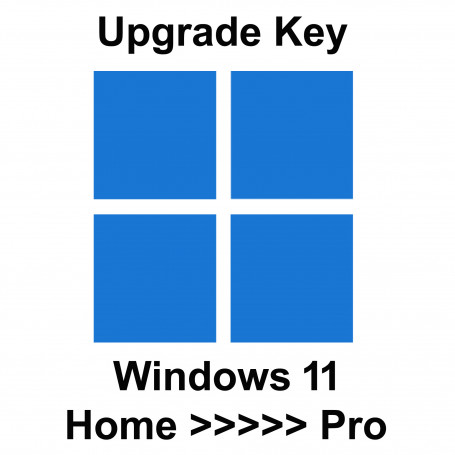


Upgrading from Windows Home to Windows Pro doesn't require a fresh installation. You can transition seamlessly while keeping all your files intact. This comprehensive guide walks you through multiple upgrade methods.
The upgrade process preserves your data, applications, and personal settings. Your device remains fully functional throughout the transition. Most users complete the upgrade edition Windows process in under 30 minutes.
Quick Overview: Windows Pro offers advanced features like BitLocker encryption, Remote Desktop, and enhanced security tools. The upgrade process is reversible within the first 10 days if needed.
Ready to Upgrade Windows Pro?
Microsoft's official upgrade path ensures secure activation and full support. Your files and settings remain completely safe during the transition.
Key Differences Between Windows Home and Windows Pro
Understanding feature differences helps justify your investment. Windows Pro targets business users and power users. The edition Windows upgrade unlocks professional-grade capabilities.
Security Enhancements
Windows Pro includes BitLocker drive encryption for complete disk protection. This feature safeguards sensitive business data from unauthorized access. Home edition lacks this critical security layer.
Windows Information Protection creates additional security barriers. The system prevents accidental data leaks across applications. These encryption tools are essential for compliance requirements.
| Feature Category | Windows Home | Windows Pro |
| BitLocker Encryption | Not Available | Full Support |
| Remote Desktop Host | Client Only | Full Host Capability |
| Group Policy Management | Not Available | Advanced Controls |
| Hyper-V Virtualization | Not Available | Built-in Support |
| Domain Join | Not Available | Active Directory |
| Windows Sandbox | Not Available | Included |
Business and Management Features
Remote Desktop functionality enables access from anywhere. You can control your Windows Pro device remotely with full functionality. This capability is crucial for flexible work arrangements.
Group Policy provides centralized system management. IT administrators configure security settings across multiple devices. Home windows lack these enterprise-level controls entirely.
Windows Pro Advantages
- Complete BitLocker disk encryption for data protection
- Remote Desktop host capabilities for remote access
- Hyper-V virtualization for running virtual machines
- Active Directory domain join for enterprise networks
- Advanced Group Policy management tools
- Windows Sandbox for safe application testing
Upgrade Considerations
- Additional cost for product key purchase
- Some features require technical knowledge
- May need hardware requirements verification
- Learning curve for advanced features
Preparing Your System for Upgrade Windows 11 Home to Pro
Proper preparation ensures smooth transition. Verify your device meets all requirements before starting. This prevents activation issues during the upgrade process.
System Requirements Verification
Check that your Windows installation is genuine and activated. Non-activated systems cannot upgrade to Windows Pro. Open Settings and navigate to the activation section to verify status.
Ensure stable internet connectivity throughout the process. The upgrade edition requires downloading activation files from Microsoft servers. Connection interruptions may cause installation failures.
Hardware Compatibility
Windows Pro shares identical hardware requirements with Home edition. Your current device already meets these specifications.
- Compatible 64-bit processor
- 4GB RAM minimum
- 64GB storage space
- TPM 2.0 security chip
Software Preparation
Update Windows to the latest version before upgrading. This prevents compatibility issues during activation.
- Install all pending updates
- Verify genuine activation status
- Close all running applications
- Disable antivirus temporarily
Data Backup Strategy
While the upgrade preserves everything, backups provide insurance against unexpected issues.
- Create system restore point
- Backup important documents externally
- Save browser bookmarks and passwords
- Export application settings
Two Methods to Upgrade Windows 11 Home to Pro
Microsoft provides multiple upgrade paths for flexibility. Choose the method that best fits your situation. Each approach delivers identical results with full activation.
Method 1: Upgrade via Settings System Activation
This represents the most straightforward upgrade path. Access through Windows native settings interface. The process completes entirely within the system settings.
- Open Settings by pressing Windows key plus I simultaneously
- Navigate to System section from the left sidebar menu
- Select Activation from the system options list
- Click "Upgrade your edition of Windows" link
- Choose "Change product key" to enter your Windows Pro product key
- Input the 25-character product key carefully without errors
- Click Next and follow the activation prompts
- Restart your device when prompted to complete activation
Activation Timing: The settings system activation method typically completes within 5-10 minutes. Your device performs a quick restart to apply the edition upgrade. No files are modified during this process.
Method 2: Command Prompt Product Key Installation
Advanced users prefer command-line activation methods. This approach provides direct system access. The process requires administrator privileges for execution.
- Right-click Start button and select "Terminal (Admin)" option
- Type the command: slmgr /ipk YOUR-PRODUCT-KEY-HERE
- Replace placeholder with your actual Windows Pro product key
- Press Enter to execute the key installation command
- Wait for confirmation message indicating successful installation
- Run command: slmgr /ato to activate Windows online
- Verify activation with command: slmgr /xpr
- Restart computer to finalize the edition Windows upgrade
Technical Note: The slmgr tool manages Windows Software Licensing. Commands execute instantly but activation requires internet connectivity. Microsoft servers verify your product key authenticity before completing activation.
What Gets Preserved During Your Upgrade Windows Pro
The upgrade windows home to pro process maintains complete data integrity. Microsoft designed the transition to be non-destructive. Your digital environment remains unchanged after activation.
Files and Personal Data
All documents stay in their original locations. Photos, videos, and downloads remain accessible immediately. The file system structure continues without modification.
Desktop items persist exactly where you placed them. Folder organization maintains its current arrangement. User-created content receives absolute protection during upgrade edition changes.
Protected Content Categories
- Documents in all user folders
- Desktop files and shortcuts
- Downloads and media libraries
- Browser bookmarks and history
- Email accounts and messages
- Saved passwords and credentials
Installed Applications and Settings
Every installed application continues functioning normally. Software licenses remain active without reactivation. Program preferences and configurations persist unchanged.
Custom system settings transfer to Windows Pro automatically. Personalization choices like themes and wallpapers stay active. Network configurations and printer connections maintain functionality.
Zero Data Loss Guarantee: Microsoft tests upgrade windows processes extensively. The activation mechanism only modifies edition-specific system files. Your personal data and application installations remain completely untouched throughout the entire process.